
Tysso Stocktaking Scanner
A stocktaking scanner is a device you take around the store and scan all the barcodes.
Fashione loan these scanners to customers, you can contact our support team for more information.
Scanner Overview
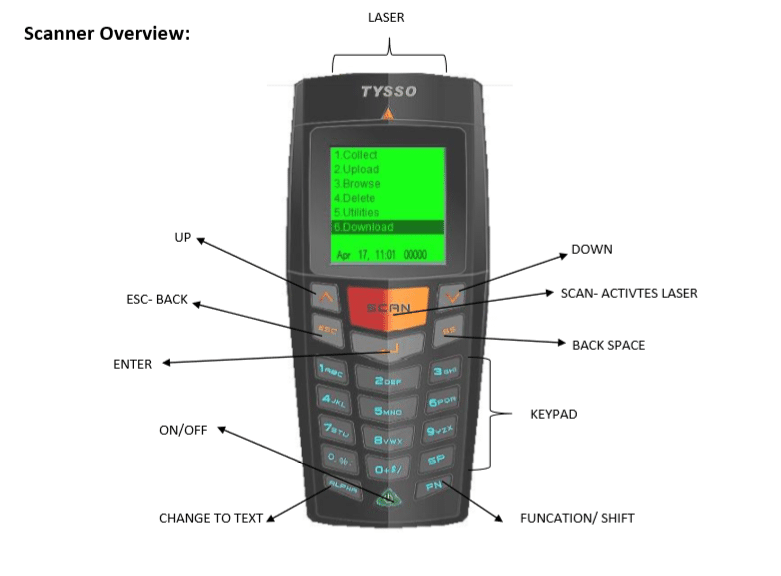
Checking the Scanner is Empty
Before starting your stocktake you should check the scanner is empty.
- Power on using the green power button.
- Press 4 or use the up and down buttons to highlight delete and then press enter.
- Delete Data: Select 1. All Data.
- Delete Data? Select 1. Yes. This has now deleted all the data off the scanner.
If the scanner just bleeps and doesn’t change screen this means the scanner is empty.
Collecting the Data
- Press 1 or use the up and down buttons to highlight collect and then press enter.
- Select Barcode or Barcode and Quantity.
Barcode
This will now display code. By using the orange scan button, this will activate the laser. The scanner will bleep when it has read the barcode and save this. Carry on scanning all the barcodes.
Barcode and Quantity
This will now display BCode and Qty. By using the orange scan button, this will activate the laser. The scanner will bleep when it has read the barcode, then type the quantity you have and press enter to save.
Barcodes that dont scan
If some barcodes will not scan, you can use the numbers on the keypad to input the barcode number. Don’t forget to save this by pressing enter.
Uploading the Scanner to your PC
You can call our support team to assist with this or watch the video on how to download the scanner.