
Our Shopify Sync creates and manages products, synchronises sales and stock levels between Fashione and your Shopify Website.
Our Shopify integration has several settings, which will be discussed on set up.
Product Creation
Product creation will vary from customer to customer, and our support team will set up your product according to your requirements. This help centre is just a basic guide, and your product creation settings may differ from those in our example videos.
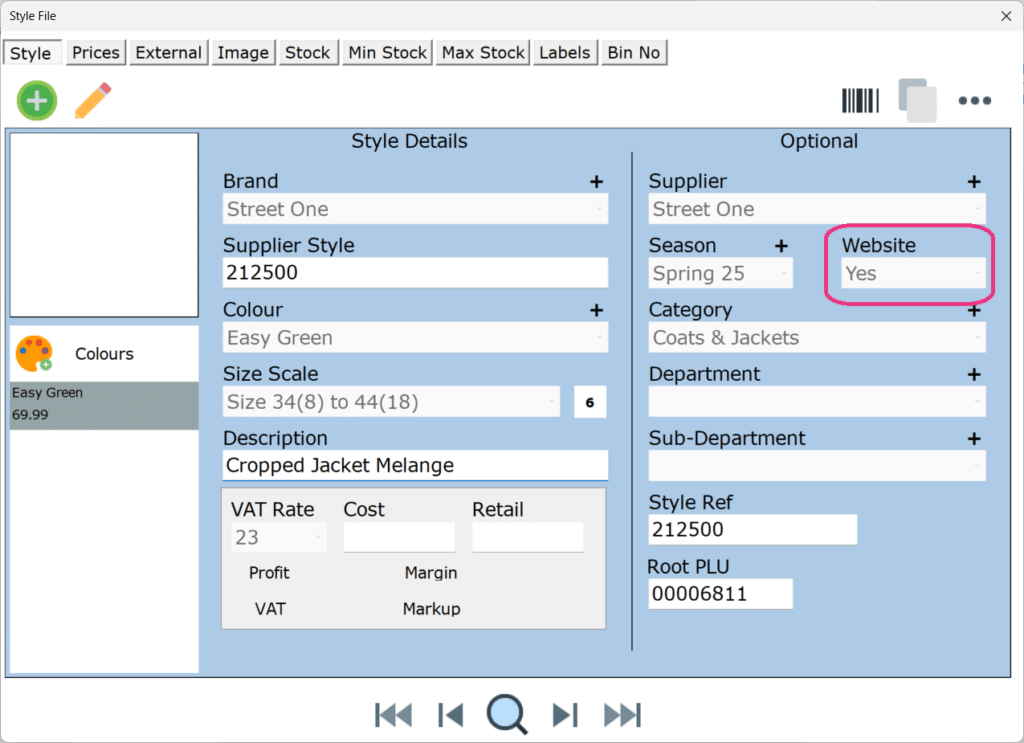
Fashione creates products on Shopify using the information you populate in the style file. The website option in the style file must be set to yes for items to be transferred to your website.
From the item Fashione initially creates, you can edit/change everything other than the following:
- Colour
- Size
- Variant SKU
Editing or changing any of the above could break the product’s integration.
Setting Items to Website Yes
You can set items to the website, yes, individually in the styles file. If an item has multiple colours, each colour will need to be set.
Alternatively, there are Web Products. Here, you can set multiple items at once. Web products are located in Office under the product section.
There are also other website settings:
Website Branch Stock: This can be found in branch settings. It controls which branch stock levels are included.
Website Brands: This can be found in brand settings. Setting the brand to website, yes, automatically sets the website option to yes in the styles file when that brand is selected.
Product Creation Example
| Shopify | Fashione |
| Title | Title can be customisable from the following Fashione fields: Brand, Style, Colour, Description. For Example, if it is set up to create a Title as Brand, then Description: Street One Cropped Jacket Melange This is only uploaded once, and this field can be changed on Shopify. |
| Descripton | Description is created based on style, description, and colour. This is only uploaded once, and this field can be changed on Shopify. |
| Product Type | Category from Fashione is set here. This can be edited on Shopify. |
| Vendor | The brand from Fashione is set here. If you update the brand on Fashione, it will update the Vendor on Shopify. |
| Tags | Season, Category, Department, Subdepartment and Brand are set as tags. These Tags are only set on product creations, and will not update if changes are made in Fashione. Tags can be removed, and you can add as many other tags as you want. |
| Variants | Fashione creates and manages the variants. Do not change variant information such as colour, size, and SKU on Shopify. Changes to colour and size have to be done in Fashione. |
| Additional product information Product Weight, Country of Origin, HS Code | HS Code in Shopify is Commodity Code in Fashione. The website tab in Fashione Styles File is where you can set Product Weight, Country of Origin, and Commodity Code. The information set here is created and updated on Shopify. |
Products
Product Weights, Country of Origin & Commodity Codes
Promotional Prices
Order Synchronisation
The following is based on one store. For Shopify stores that have multiple inventory locations, please see Shopify fulfillments.
Online sales from Shopify, download to Fashione, and the stock is updated.
Editing orders is not supported.
When items need to be refunded, we recommend using refunds and not returns. Refunds are downloaded to Fashione, and the stock is updated based on whether you restock the item on Shopify.
Returns on Shopify have recently changed, and we need to change our Shopify Sync to support these changes. When this is back available to use, we will update this section of the help centre.
POS Messages
When a sale is made online, your POS can notify you with a POS Message. Contact our support desk to have this switched on.
Stock Synchronisation
Fashione is the master when it comes to stock levels. If you find an incorrect stock level online, check Fashione. Amending the stock level on Fashione will then update the website.
By default, amending stock levels on Shopify does not update the stock levels in Fashione. However, there is a setting we can turn on for Shopify stock adjustments.
If the stock on Fashione and Shopify doesn’t match, please get in touch with our support desk.
Additional Infomation
Mapping existing Shopify items
If you have started building your Shopify products before adding the Shopify sync integration, you must map the existing products to create a link between Fashione and Shopify. The Fashione PLU number must be added to the variant SKU field in Fashione. A video example is available here.
Frequently Asked Questions
No, you will also need to delete the item from Shopify.
No, you will also need to remove the item from Shopify.
For EAN Barcodes, Shopify has a dedicated field called Barcode (ISBN, UPC, GTIN, etc.).