
Style Fact File
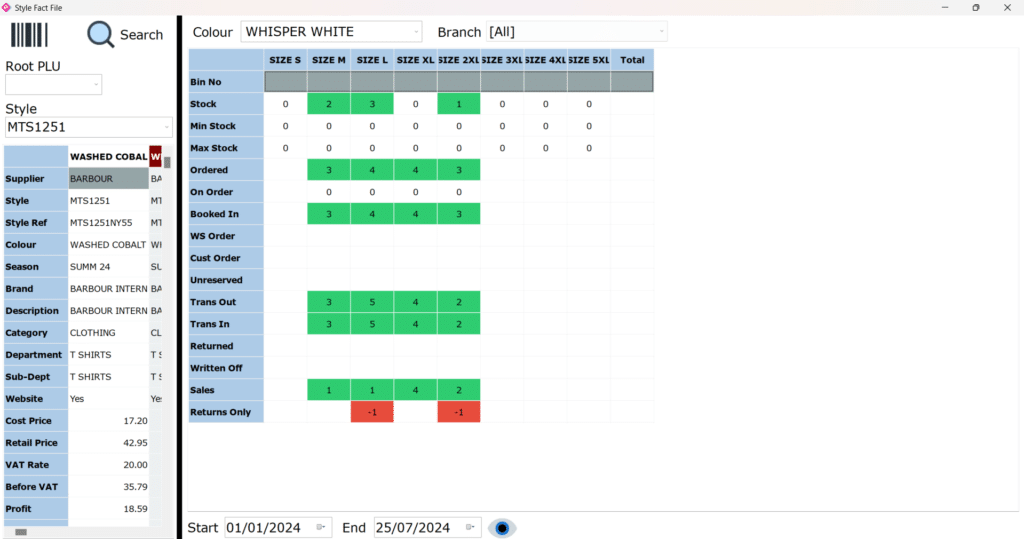
From one screen you can see stock and sales information, by style, in one particular colour that is broken down by size.
To the left you have the product information and to the right of the screen it shows units information, by procedure, broken down by size.
Search Options
By Barcode
- Press Barcode
- Scan item
- Screen will now load.
Root PLU / By Style
In the box type the Root PLU or Style and press enter.
Advanced Search
- Select Search
- Advance Search will appear
- Press ok, select item from the list you want to view and press ok.
Search Results
Most of the search results are based on the default date range at the bottom of the screen, which is the last 6 months. Other than the stock fields and bin number, these are not affected by date range.
You can change the date range at the bottom of the screen and press view  .
.
The results will also be default by all branches. If you want to look in to a single branch, you can change this by selecting a branch.
To change the colour you are viewing, you can select the colour in the drop down box.
You can export the grid by right clicking and pressing export, and you can also open styles file, from the right click menu.
View History
Right clicking in to view history will open the product history screen. This will give you the full history of the item. This is by colour, so if you want to view another colour you will need to close view history, and change the colour selection on style fact file.
Using the selection boxes you can select a branch, a size, only stock flag and sort by date.
Press search  to view the history.
The only stock flag, will hide any lines that don’t affect stock levels, such as a purchase order. Sort by allows you to view the history in either date or procedure order.
You can export the data by pressing export  .
.
Style Stock View
Style stock view, displays the data by procedure.
Procedure List:
- Stock
- Min Stock
- Max Stock
- Ordered
- Booked In
- Transferred In
- Transferred Out
- Supplier Returns
- Write Offs
- Sales
- Returns Only
From one screen you can see the procedures information by style in one particular colour, that is broken down by branch and size.
To the left you have the product information and to the right of the screen it shows information by branch, broken down by size.
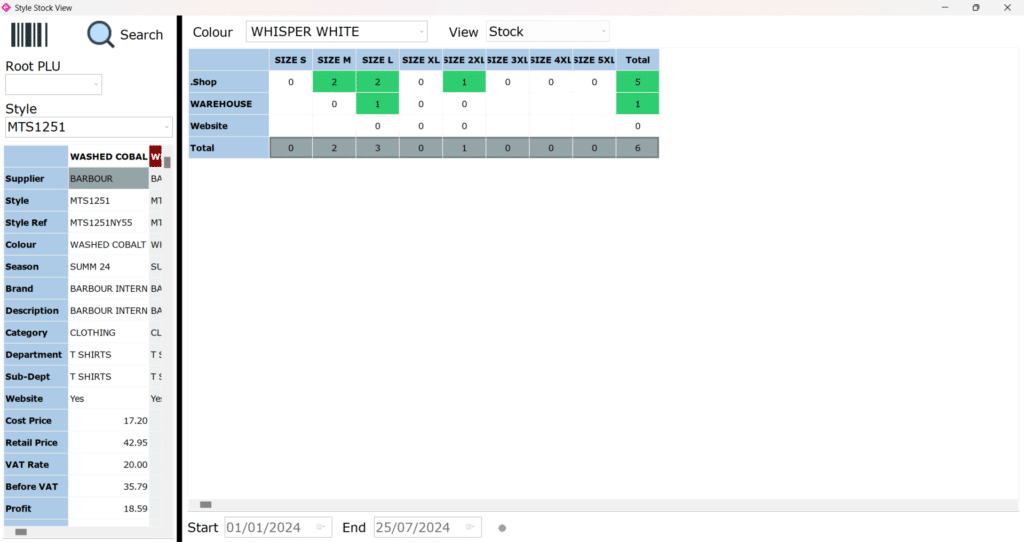
All the search options, search results and right click menu are the same for Style Stock View, as Style Fact File.