
Introduction
Purchase orders is used for seasonal retailers, to pre load their seasonal orders, prior to the items arriving. When the items arrive, you can just simply find the order and book the goods in.
Loading your orders in the system, in advance, allows you to book them straight in when they arrive. Meaning you can get them on to the shop floor quicker, for selling.
Purchase Orders can also be used to suggest items to order. For example, if you have core items that you keep stock of all year round, you can use suggest, to reorder to minimum or maximum stock levels.
Creating an Order
To create an order, press add  , and select your supplier and order period and press ok.
This has now loaded the purchase order screen. You can start to create the order, products and input your order quantities.
Reference, you can use the reference that has been randomly generated, or you can overwrite this with an order reference from your supplier.
Reason is for if you have an order reason. For example: Show Room Order
You can set your order date and the start and end delivery date range.
Create a product
To create a product, press Add Style  . Styles file will now open.
The last product you created for this supplier will appear. To start a new item press, add .
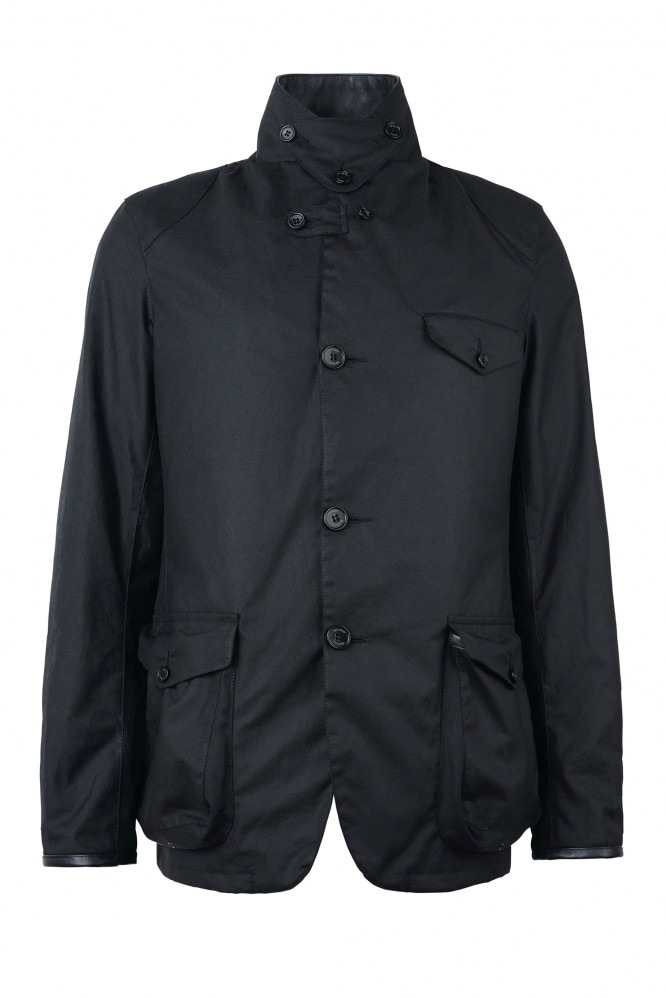
For our example item, we are going to be adding this Barbour Jacket. The Beacon Sports Jacket is available in Olive and Black.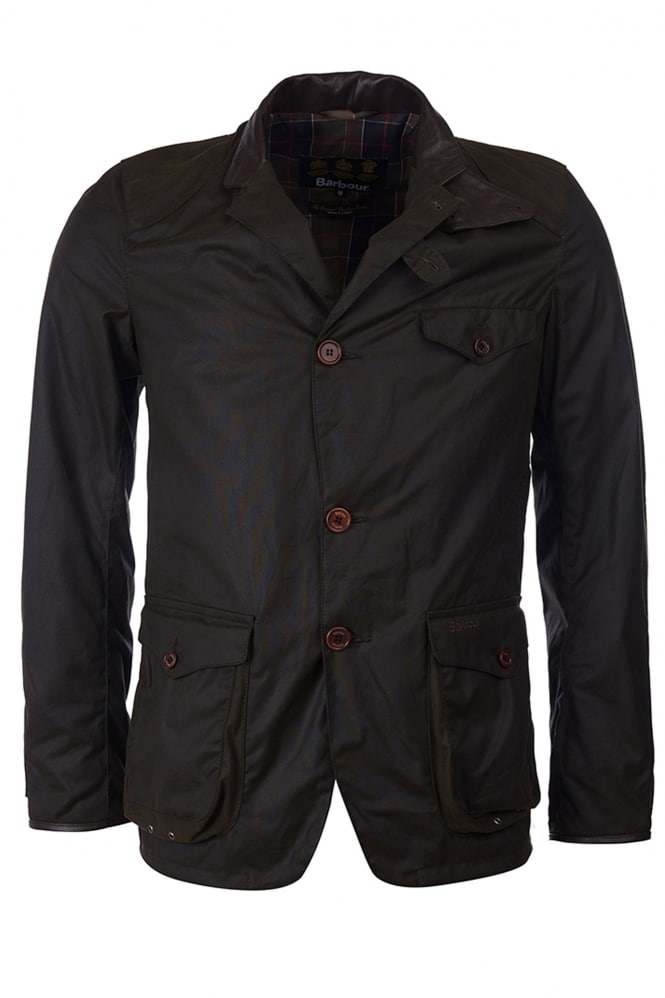
Brand, for example, uses the brands you added in your initial set up. However, if you need to create a new brand you can use the quick add button +.
Supplier Style is the styles unique item code.
This Jackets unique style number is MWX0007.
Colour is Olive, we will add the black on later.
The Size Scales need to exist before you can create the product, if your size scale doesn’t exist you will need to go back into settings.
This jacket comes in Small to 5XL, select the size scale for this size range.
Description is a short description of the item.
This Jackets description is Beacon Sports Jacket
Set the items VAT rate, Cost prices, and Retail Price.
In Fashione cost prices are excluding VAT and retail prices are including VAT.
There is a price calculator button  , this allows you to work out your retail prices by mark up, margin or profit.
You can continue to set the optional style details.
Supplier: Barbour
Season: AW24
Category: Clothing
Department: Jackets
Once finished, you just press save, to create the item.
Adding another colour way
We have just created the Beacon Sports Jacket in Olive, but it is also available in black. To add another colour option, press the colour pallet  . Tick the colour the product is also available in and press ok. This will now display the item with its available colours.
Adding Order Quantity
Now we have finished creating the product, press the x to close styles file. It will take you to the add order quantity screen.
Enter the first order quantity, and press enter. This will move your along to the next size.
Once you have finished loading your order quantity, press ok and this will load your order quantity for this product into the purchase order.
You can now move on to your next item, by pressing Add Style . Create your next item and then add the order quantities.
Now your order will have two products in the purchase order. Continue to create your items and load the quantities until you have the full order on.
Once finished, press save  . Your order is now saved.
Searching Existing Items
If the product already exists, you can search for the item in the style box.
- An exact match will bring you to the add order quantity screen.
- A partial match will bring up search results. Select the product and this will take you to the add order quantity screen.
- Pressing search on an empty style box, will bring up an advance search.
Adding a colour to an existing item
When you have selected the item, and the add order quantity screen appears, you will see edit  .
.
Pressing edit will take you to the item in styles file, using the colour palette , tick the colour the product is now available in and press ok. This will now display the item with its available colours.
Press the x to close styles file. Now it will take you to the add order quantity screen.
Searching an order
To load a saved order, in purchase orders you can use the quick search keys (Last Order, Today, Last 7 Days, Last 30Days, This Period) or use search  .
.
Using search will allow you to search by date, reference, reason and more.
Editing an order
You can save your order midway to finish later, as well as edit orders.
We recommend saving your order, if you get called away from your device. This just saves where you are up to.
Search the order, you wish to edit, or continue with, double click the order and the order will load.
Press edit . You can now continue or edit the order.
Once finished, press save .
Useful Features
This video covers:
- Removing / Adjusting Order Lines
- How filter works on the purchase order screen.
- How you can change the order quantities from the items in the list.
- Import and the right click menu.
Deleting an Order
Deleteing orders is control by security.
On the purchase orders search screen, select the order you wish to delete, and press the bin  .
.
You can only delete orders that have not been booked in. If the order has been booked in, you will have to remove the delivery and then delete the order.
Booking in your order
To book in your order, load your purchase order on screen and you will then see the book In button  .
.
Once pressed, the purchase order will close and the book goods in screen will open.
- Enter a delivery note and select the branch you wish to book the goods in to.
- For labels to create, make sure create labels is ticked.
- You can book in by item, by using the book in column. If you know everything has arrived, you can press Set Outstanding Qty, this will set the book in column to what has been ordered.
- Press ok, and the items will now be booked in, and stock will be created.
Printing the labels
Your labels will now be waiting for you in the label printer. Close out of book goods in and navigate to products – label printer.
There are more features and information on Booking Goods In available in this help centre.
Suggest Orders
Suggest orders is where you can use Min/Max Stock to order items that never go out of stock or are continuous.
You will need to set Min/Max stock in style file prior to using this feature.
When creating your purchase order when you have selected your supplier and order period, tick the suggest items option and press ok.
You will be given the following suggest order options:
- Minimum Stock
- Maximum Stock
- Current Stock
- One Piece of Each
For this example, we will use minimum stock and the continuous item concept.
After selecting minimum stock, and a branch, advance search will appear. All the continuous items in the system are under season CORE. In the advance search, search for CORE season and press ok.
A list of items will appear, select them individually or select them all. Fashione will now work through the selected items to work out what items need to be ordered to get the stock levels back up to minimum stock.
Example:
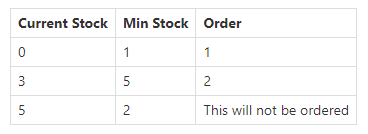
You can edit and remove any items that have been suggested.
Training Video
The video below is a training video on purchase orders:
VIDEO HERE