
Introduction
Our WooCommerce integration creates products, manages products, and synchronizes sales and stock levels between Fashione and your WooCommerce Website.
For a more detailed WooCommerce Sync Guide, for your website developer, please contact our support team.
Our WooCommerce integration does have a number of settings and these will be discussed on set up.
Product Creation
The product creation will vary, customer to customer, and our support team will set up your product creation, to your requirements. This help centre is just a basic guide, and your product creation settings may differ from our example videos.
Fashione creates the products on WooCommerce using the information that you populate in style file. For items to go over to your website, the website option in styles file must be set to yes.
From the item Fashione initially creates, your can edit/change everything other than the following:
- Colour
- Size
- Parent SKU
- Variant SKU
Editing or changing any of the above could result in the item no longer being recognised by the integration.
Setting Items to Website Yes
You can set items to website yes, individually in styles file. If an item has multiple colours, you will need to set each colour.
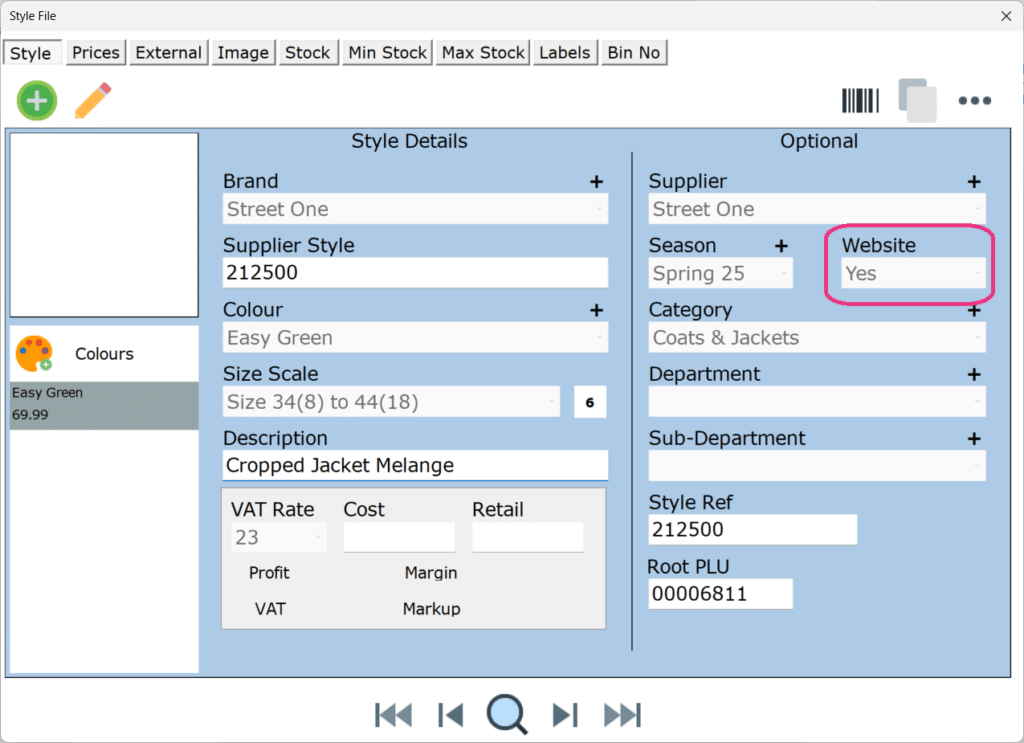
Alternatively there is Web Products. This is where you can set multi items at one time. Web products is located in Office, under the product section.
There are also other website settings:
Website Branch Stock: this can be found in branch settings. This controls what branches stock levels are included.
Website Brands: this can be found in brand settings. Setting the brand to website yes, automatically sets the website option to yes in styles file, when that brand is selected.
Product Creation Example
Order Synchronisation
Online sales from WooCommerce, download to Fashione and stock is updated. This is the same for refunds.
We would recommend watching the WooCommerce returns video on how to do a return correctly.
Refunds
Exchanges
WooCommerce does not have an exchange feature, instead they have an order editing feature. This allows items to be changed within an order.
Fashione has created an exchange tool that captures order changes, but this is switched off by Default. You can contact our support desk to have this switched on.
The tool captures order changes and refunds items that have been removed and sell items that have been added, to amend the sales and stock figures in Fashione, accordingly.
POS Messages
When a sale is made online, your POS can notify you with a POS Message. You can contact our support desk to have this switched on.
Stock Synchronisation
Fashione is the master when it comes to the stock levels. If you find a stock level incorrect online, you should then go check Fashione. Amend the stock level on Fashione, and this will then update the website.
Amending stock levels on WooCommerce, does not update Fashione.
If the stock on both Fashione and WooCommerce don’t match, please contact our support desk.
Frequently Asked Questions
No, you will also need to delete the item off WooCommerce.
No, you will also need to remove the item off WooCommerce.
You will require a WooCommerce plug-in called EAN for WooCommerce to be installed on your website. Then EANs set in Fashione can be set in the EAN Barcode field on WooCommerce through the integration.