
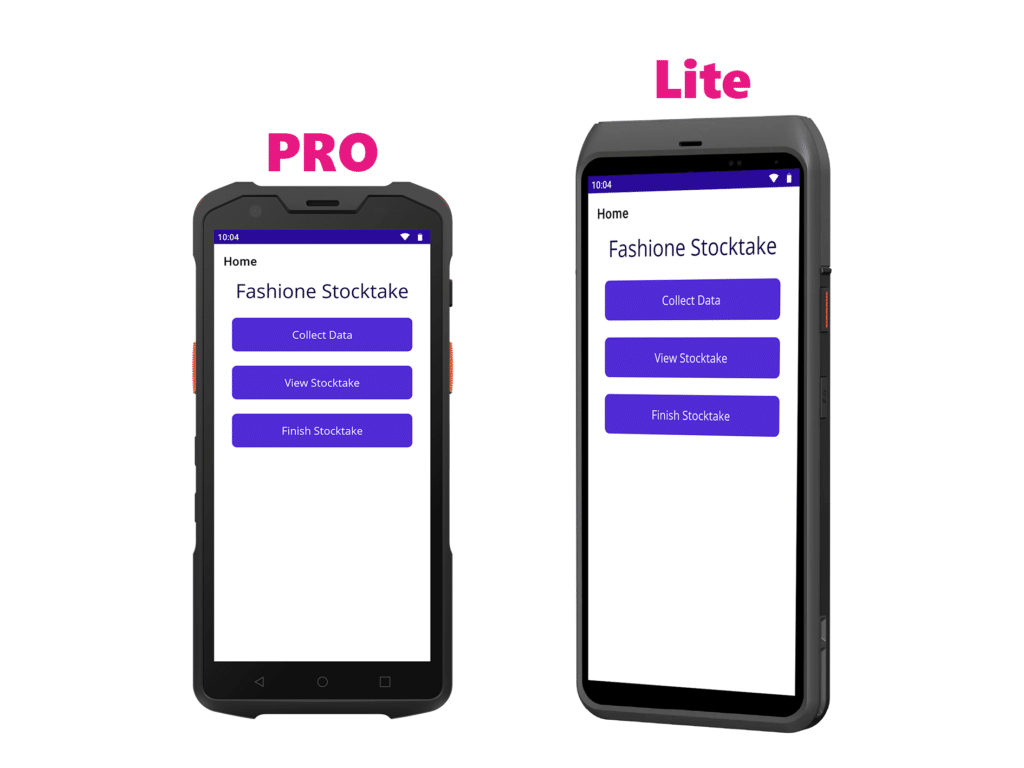
We currently have two stocktaking scanners. The PRO & Lite. Both stocktaking scanners are designed to push your stocktake data directly into the Fashione Cloud, eliminating the need for a data cable.
PRO Scanner Set Up
For the scanner to link to the Fashione Cloud, you will need to connect it to your Wi-Fi. The scanner is very similar to an Android mobile.
The video below shows you how to use the scanner, charge it, and connect it to your Wi-Fi.
For using the scanner offline and downloading data via a USB cable, please refer to our Offline Guide.
Lite Scanner Set Up
For the scanner to link to the Fashione Cloud, you will need to connect it to your Wi-Fi. The scanner is very similar to an Android mobile.
The video below shows you how to use the scanner, charge it, and connect it to your Wi-Fi.
For using the scanner offline and downloading data via a USB cable, please refer to our Offline Guide.
Stocktake Scanner Guide
The following video will show you how to use the stocktake scanner and upload it to the Fashione Cloud.
After you have uploaded your stocktake, please contact our support desk to import it into your stocktake
In this video, the PRO Scanner is used. Other scanners may look different, but the app will operate in the same way.
Staketake Scanner Offline Guide
The following video shows you how to save your stocktake to the device locally, so you can use the USB Data cable to download the stocktake file. Please note that the video below may vary slightly depending on the Windows or Android version.