
Introduction
Customer loyalty is where customers can gain loyalty points when they spend in store, to then later redeem, to receive a discount.
Loyalty requires customer tracking.
Loyalty is just an add-on feature to customer tracking. When sales are tracked against customers, this is when loyalty is gained.
Our loyalty system, is a points based system similar to Tesco. The customer has to spend a certain amount to receive a point. Then this point has a value.
For Example:
| Amount to earn one point | £1.00 |
| Point Value | £0.10 |
Our support team can help you work out your loyalty scheme. For example 5% would be 5p for every £1 spent.
Tip:
Make sure your loyalty scheme is worth while for customer. Low rated loyalty like supermarkets, doesn’t work for fashion stores.
There are also multiple loyalty settings.
Setting Up Loyalty
Firstly you will need to decide whether loyalty is available for all customers, or will you be activating this on a per customer basis.
Our support team will set up the initial loyalty settings. This can not be done by yourself.
Loyalty Settings
Basic loyalty allows customers to collect points on every transaction including discounted items, promotional items, all payment methods and no minimum loyalty spend.
How much a customer must earn, before spending there loyalty
You can set a minimum amount a customer has to accumulate, before they can use there loyalty points.
Example: If this is set to £25, the customer has to gain £25 in loyalty before they can spend it.
Points to be given or not on discounted items or promotions.
You can set that loyalty is not given on discounted items. This is when Price or Disc is used on the till.
This also includes when the customer uses their loyalty points. Using the loyalty is a discount and therefor the customer will not gain points on that transaction.
You can set that loyalty is not given when items are on promotion.
Points to be given or not, when Gift Vouchers /Credit Notes are used as a payment.
You can set that loyalty is not given when Gift Vouchers, Gift Cards and Credit Note are used.
Example: Sale value £40. Paid with £20 Credit Note and £20 cash. The customer will only receive points on the £20 cash payment.
Points to be gained or not, when other tenders are used as a payment.
On the POS, there is an Other payment key. You can set that loyalty is not given when other payments are used.
Point settings on returns/refunds.
By default points are removed when an item is returned/refunded. However there is a setting where the customer can keep the points.
POS Loyalty
As mentioned, loyalty is just an add-on to customer tracking. When sales are tracked against customers, this is when loyalty is gained.
You would of decided whether your loyalty is available for all customers, or if you will be you activating this, on a per customer basis.
First off, you will need to add a new customer or search an existing customer.
Adding a new customer
- On the customer search screen, press add.
- Fill in the customers information.
- Select there marketing consent.
- Press ok and the customer is now saved.
- You will be taken back to the transaction screen with the customers name at the top.
If loyalty is enabled for all customers:
The customers profile will have the loyalty setting enabled and you can go straight on with the transaction.
If loyalty needs activating:
- Click the customers name.
- Select the Loyalty tab.
- Change Loyalty Status to Active, and press ok.
Searching an Existing Customer
On the customer search screen, you can press search by, to search by:
- Card Number
- Name ( ‘J Bloggs’ ‘Jo B’ ‘Joe Bloggs’)
- Post Code
- Mobile
- Surname
- First Name
- Customer No
Once searched, highlight the customer and press ok. You will be taken back to the transaction screen with the customers name at the top.
If loyalty needs activating:
- Click the customers name.
- Select the Loyalty tab.
- Change Loyalty Status to Active, and press ok.
Tracking the sale
With the customer name at the top of the transaction screen, you can now just do your sale as normal.
- Scan item(s) into the transaction screen.
- Select payment method
- Finalise sale as normal.
Loyalty details are printed on the customers transaction receipt.
Example:
Name: Demo Customer
Cust No: 0000000001
| Loyalty Previously | 0.00 |
| Loyalty Earned | 2.50 |
| Loyalty Spent | 0.00 |
| Loyalty Total | 2.50 |
Viewing Loyalty Points
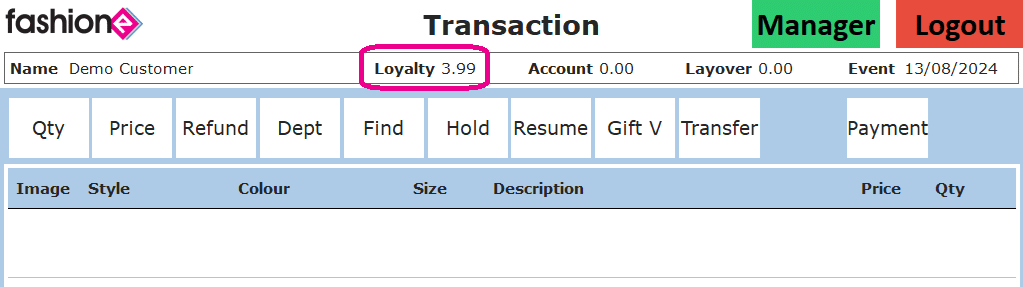
When you select a customer, at the top of the transaction screen you will see the customers loyalty amount.
Using Loyalty Points
VIDEO
With the customer name at the top of the transaction screen, you can now use there loyalty points.
- Scan Item(s) in to the transaction screen.
- Press Disc, Select Loyalty.
- You can use the full loyalty amount, or change the value. Press ok.
- Press ok to be taken to the payment screen. Finalise the sale as normal.
Loyalty earned, spent and total will be displayed on the customers transaction receipt.
Editing Loyalty Points
Editing loyalty points on the POS is switched off in security, by default.
You can edit the total points and also set different customers, to different loyalty rates.
Please bare in mind that only managers should have access to editing customers loyalty points.
Having edit loyalty points enabled, can be open to abuse.
In Fashione Office, under Customers, you can also view and edit loyalty points.
Additional information
How loyalty works with Accounts, Layovers and Customer Orders.
| Accounts | Points are given when the item is placed on account. |
| Layovers | Points are given when the item is taken. |
| Customer Orders | Points are given when the item is taken. |